Privacy and security
This resource helps Digital Technologies teachers understand how privacy and security can be taught from Foundation to Year 10.
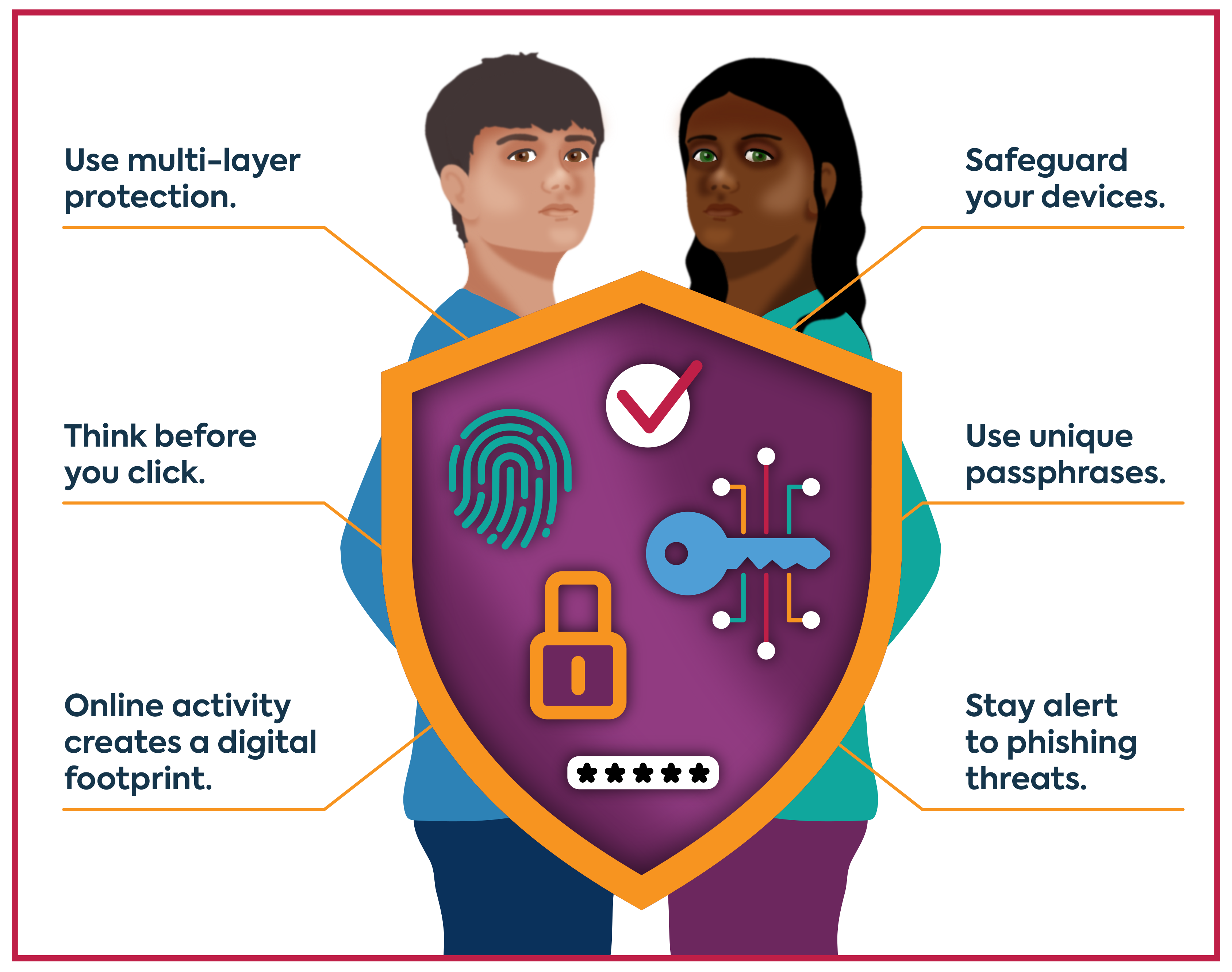
What you'll find
- Clear explanations of core privacy and security ideas
- How expectations build across year bands
- Practical examples you can use in the classroom
- Resources to help in planning and assessment
Privacy and security focus by year band:
| Year band | Students learn to |
|---|---|
| Foundation | Identify personal data that belongs to them and understand that some information should be kept private. |
| 1 - 2 | Recognise that websites and apps store personal data, understand that login details must be kept private, and use recorded usernames and passwords to access their school accounts safely. |
| 3 - 4 | Create secure, easy‑to‑remember passwords, identify what personal data their online accounts store, and explain how this data contributes to their digital identity and the risks of it being shared. |
| 5 - 6 | Use strong, unique passphrases, explain how online activities create a permanent digital footprint, and consider privacy when providing or collecting personal data. |
| 7 - 8 | Explain how multi‑factor authentication protects compromised accounts, identify phishing and other cyber security threats, and investigate digital footprints by assessing whether collected data is essential. |
| 9 - 10 | Explain how personal information moves through systems, identify vulnerabilities to cyber-attacks, and apply privacy principles to evaluate how well systems protect user data. |
What is privacy and security?
ACARA defines privacy and security as ‘the protection of data when it is stored or transmitted through digital systems’.
In Digital Technologies, this includes:
- Privacy: understanding what personal data is collected, how it is used and the risks involved, and applying strategies to minimise unnecessary data sharing
- Security: using technical and procedural measures to protect data and systems, including strong authentication, secure passwords, recognising cyber security threats, and understanding legal and ethical responsibilities when designing or using digital systems.
A simpler explanation can help …
Privacy and security are about keeping information safe. It includes knowing what personal data you share, how it can be used, and how to protect it with strong passwords, secure settings, and safe choices online.
Why is it relevant?
Privacy and security are essential because students use digital systems every day to learn, communicate and create. These systems collect, store and transmit personal data, which means students need to understand how information moves through digital environments, what risks exist and how to protect themselves and others. Learning about privacy and security helps students recognise how data can be exposed or misused, apply strategies such as strong authentication and safe data practices, and understand the ethical and legal responsibilities involved in using and designing digital systems.
Connections to Digital Literacy
Digital citizenship is a broad area that fits within the general capability of Digital Literacy. Digital citizenship complements learning about privacy and security by helping students understand the behavioural side of online participation, including how to communicate safely, think critically about content and manage their digital identity.
Key terms in the curriculum
| Personal data | Information that identifies a person (name, age, photos, login details, location) on its own or when combined |
|---|---|
| Data privacy | Controlling what personal information is collected, stored, shared or used by digital systems |
| Data security | Technical measures that protect information from unauthorised access, loss or misuse |
| Passwords & passphrases | Secret combinations used to secure accounts; strong, unique ones reduce risk |
| Multi‑factor authentication (MFA) | Extra verification steps that protect accounts if a password is compromised |
| Digital footprint | The record of information created when using digital systems, which can be permanent |
What this looks like in practice
| Personal data | Not sharing their real name when creating a game profile and choosing an avatar instead of a photo |
|---|---|
| Data privacy | Checking what information an app asks for, for example, name, email and location, and deciding whether it’s necessary before allowing access |
| Data security | Saving files in a protected school account rather than on a shared device where others could access them |
| Passwords & passphrases | Using a unique passphrase such as ‘BlueTreeRunsFast!’ for a new account instead of re using a basic password ‘mike2001’ |
| Multi‑factor authentication (MFA) | Entering a code sent to their email or authenticator app when logging in from a device |
| Digital footprint | Realising that comments they post in a class forum remain visible later, even after they move on to a new topic |
What to teach?
‘Privacy and security’ is introduced early, from Foundation, and builds in complexity right through to Year 10.
Here’s how the concept develops across year bands:
Privacy and security in Foundation
Expectation for this band
Students can:
- identify personal data that belongs to them
- recognise that some information should be kept private
- notice where their personal data might be visible online, for example name, photo and school.
The focus is on building awareness of what personal data is, understanding that some information should stay private and beginning to recognise where their data might appear when using digital systems.
What this looks like in practice
Students explore examples that help them:
- identify personal data (their name, age, photo, school, family)
- recognise what should be kept private (not sharing full names or photos when using a class app)
- notice where their data might appear online (seeing their name on a login screen or class platform)
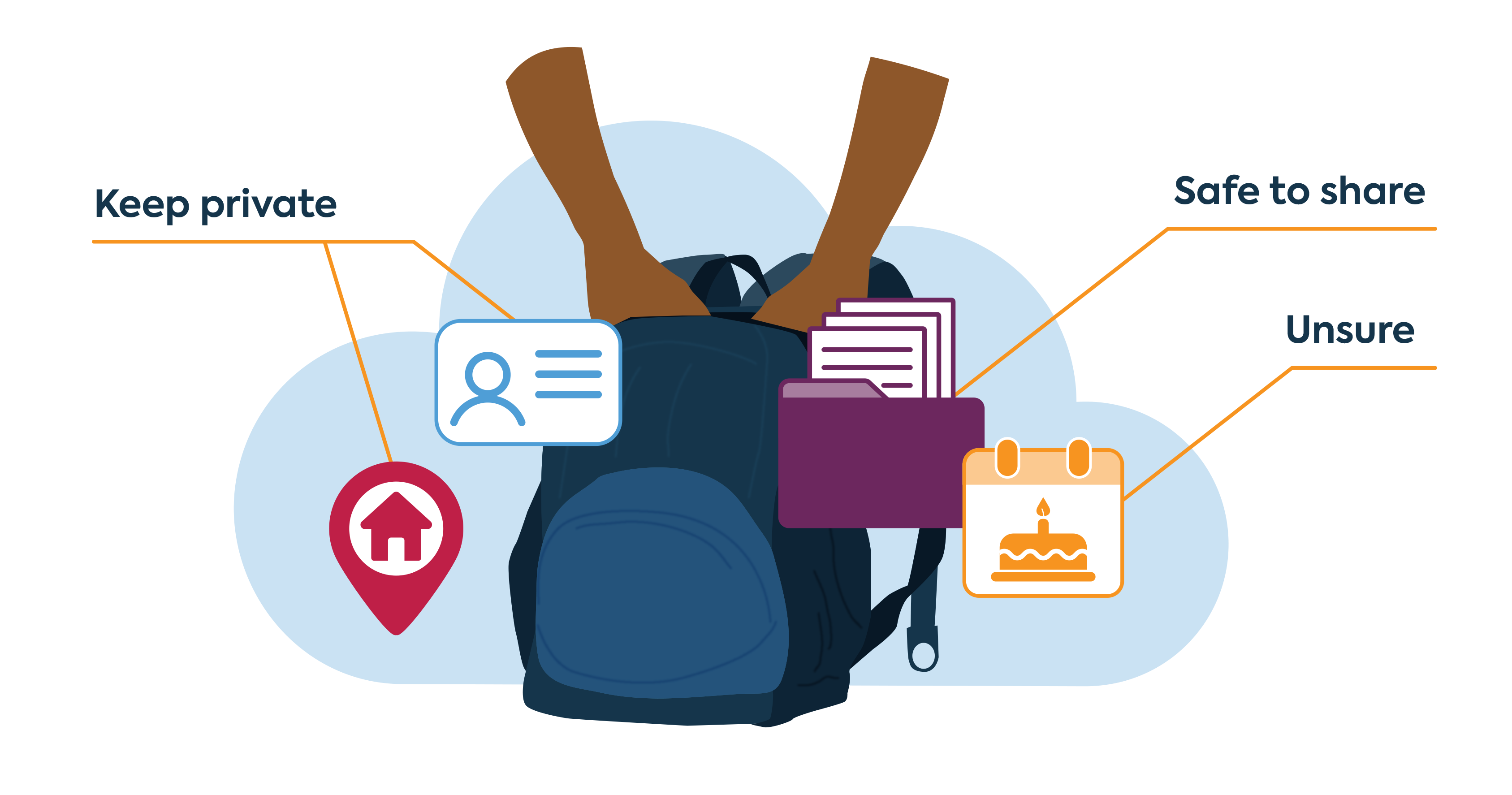
By the end of this lesson students will be able to describe information that belongs to them and should be kept safe.
Retrieval: What information about yourself would you share with a friend? What information would you keep private?
We share information every day at school, at home and online. Some information is safe to share, while other information should be kept private or checked with a trusted adult before sharing. Today, we will think about the information we carry in our ‘digital backpack’ and how to keep it safe.
The teacher shows a digital backpack on the screen or a real backpack with laminated ‘data cards’ inside.
Inside the backpack are cards such as:
- name
- nickname
- age
- photo
- game avatar
- school logo
- birthday month
- family drawing
- family photo
- favourite food
- favourite colour
- favourite pet
The cards are pulled out one at a time and as a class, decide:
- Safe to share
- Unsure
- Keep private.
With each card, prompt:
- Could this help someone identify me?
Discuss that some information is easy to place, while some, such as nickname, avatar and birthday month, may sit in the ‘unsure’ category and need checking.
After sorting, ask:
- Where might this appear online? (games, school apps, websites)
Items in the ‘unsure’ category should be checked with a trusted adult before sharing. This builds students’ digital literacy by supporting safe decisions about information.
The backpack metaphor mirrors how digital systems ‘carry’ data, including personal data.
Evidence of learning
You might notice that students:
- identify examples of their own personal data (name, age, photo, school, family)
- sort information into whether it is safe to share, needs checking or should be kept private with growing accuracy
- explain why some information identifies them and some does not.
If students can explain why something is or isn’t personal data, they are developing early privacy awareness.
Common misconceptions or errors to watch for
- Thinking anything about them (favourite colour, favourite pet) is personal data
- Not recognising that photos or school logos reveal identity
- Confusing ‘things they like’ with ‘information that identifies them’
Address these explicitly during modelling and discussion.
Poster: Key ideas, practical examples, Australian Curriculum
Download Privacy and security poster (F) [PDF] (opens in a new window)
Privacy and security in Years 1-2
Expectation for this band
Students can:
- identify personal information in digital systems
- recognise simple ways to keep personal information private
- use basic privacy features (like logging in or choosing an avatar)
- notice when a system asks for information and decide if it is personal data.
The focus is on helping students understand that digital systems collect personal information and that simple privacy features help keep this information safe.
What this looks like in practice
Students work with digital systems to:
- identify when they are being asked for personal information
- choose simple privacy options (such as selecting an avatar or using a class login)
- use basic features that help keep information private (logging in, logging out)
- notice where their personal information appears on a screen.
Privacy actions are usually modelled, practised together, and supported with clear visual cues.
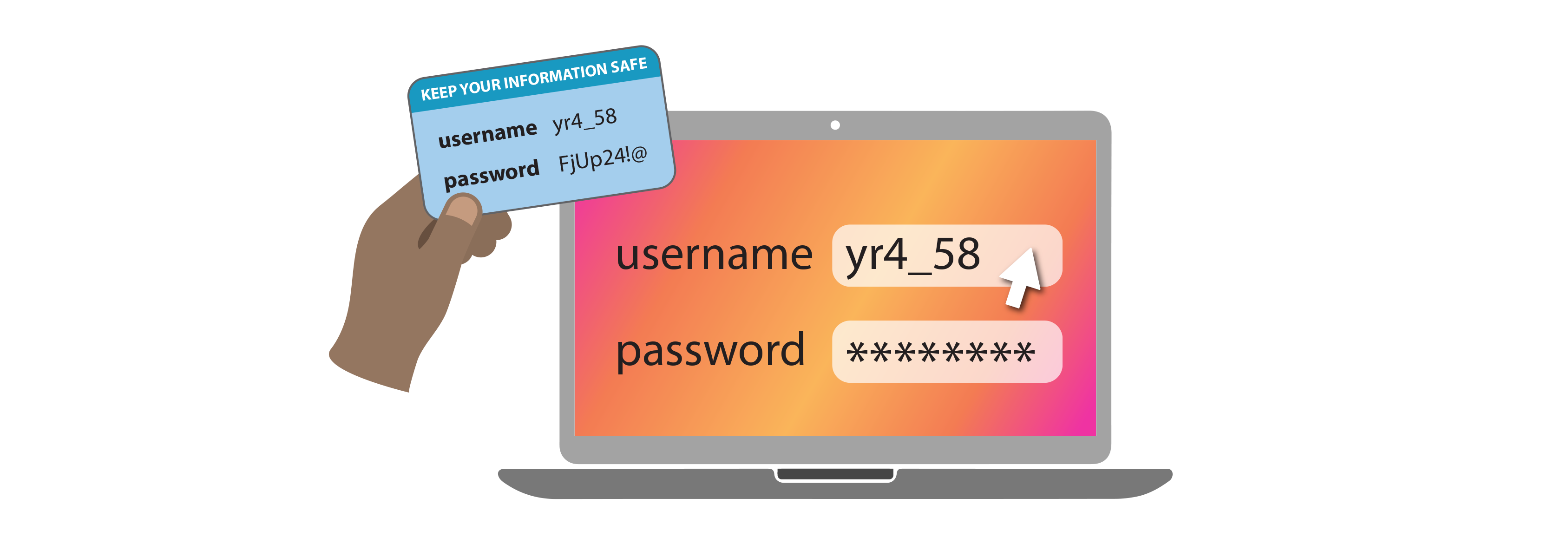
By the end of this lesson students will be able to describe information that should not be shared on the internet.
Retrieval: What does a username and password let you do? Why do some apps ask you to create an account?
Different digital systems collect different kinds of information. Some apps need information so they can identify users or save their work, while others can be used without sharing any personal information. Today, we will investigate what information different apps ask for and consider whether they really need it.
Prepare 3–4 screenshots of different types of apps/tools, for example:
- A school login page (username + password)
- A drawing app (no login – just tools)
- A simple game (asks for a username or avatar)
- A search engine (only a search box – no personal information).
Display one screenshot at a time. Ask students:
- What information is this app asking for?
- Is any of this personal information?
- Does this app need to know who you are?
Students sort each screenshot into one of three categories:
- Needs to know who you are
- Asks for some information
- Does not ask for information
For each example, prompt:
- Could this identify you?
Highlight the key idea: Different digital systems collect different kinds of information.
Evidence of learning
You might notice that students:
- recognise simple ways to keep information private
- use basic privacy features such as using their school log-in credentials or choosing an avatar
- notice when a system asks for information and decide if it is personal data.
If students can explain why something is personal information, they are developing early privacy awareness.
Common misconceptions or errors to watch for
- Thinking anything about them is personal information
- Not recognising that names or photos identify them
- Not noticing when a system is asking for personal information.
Address these explicitly during modelling and discussion.
Poster: Key ideas, practical examples, Australian Curriculum
Download Privacy and security poster (1-2) [PDF] (opens in a new window)
Privacy and security in Years 3-4
Expectation for this band
Students can:
- create secure, memorable passwords
- identify what personal data their accounts store
- explain how this data forms part of their digital identity
- recognise risks when personal data is shared.
Students move from recognising when data is collected to understanding that accounts store personal data over time, which builds a digital identity and creates risk if shared.
What this looks like in practice
Students:
- create and test strong passwords (length, unpredictability, uniqueness)
- explore what information is stored in an account (name, avatar, activity)
- identify where this data appears across a system
- discuss what could happen if this data is accessed or shared.
By the end of this lesson students will be able to explain what personal information a digital system collects and evaluate whether that information is necessary for its purpose.
Retrieval: Should you provide every piece of information a website or app asks for? Why or why not?
Many digital systems collect information about their users. Some information may be necessary for the system to work, while other information may be collected for advertising, profiling or other purposes. Today, we will investigate what information different systems collect and consider whether it is reasonable for them to ask for it.
Students interact with two simple systems (real or mock):
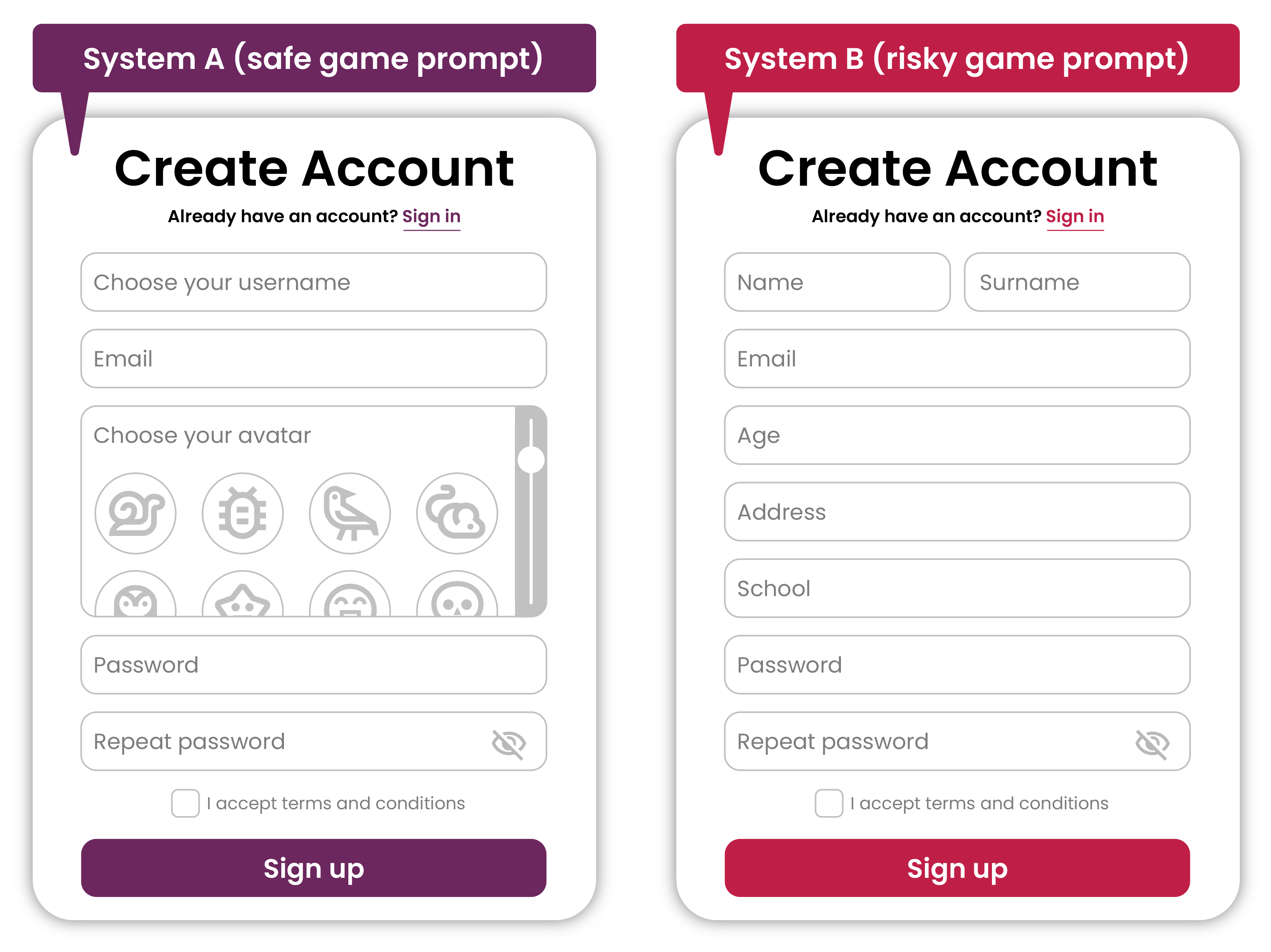
- System A (safe game prompt) asks only non-personal questions, such as avatar preference, favourite colour, game level choice
- System B (risky game prompt) asks for personal information such as name, age, school, location.
Students can:
- identify what each system is asking for
- sort questions into safe/unsafe to share
- discuss what data each system would collect over time
- create a warning poster: ‘Is this system safe? What should you not share?’.
Prompt: What information is this system collecting about you and is it necessary for the game?
Key idea: Digital systems often collect information about their users. Safe and informed users evaluate whether requested information is necessary and recognise when sharing personal information may create privacy risks.
Evidence of learning
You might notice that students:
- describe what personal data is stored in an account
- create stronger, more secure passwords
- explain how stored data connects to their identity
- recognise risks of sharing account information.
If students can connect personal data to how it is stored, used and protected in online systems, they are developing understanding of privacy and security.
Common misconceptions or errors to watch for
- Thinking passwords only need to be secret, not strong
- Not recognising how multiple pieces of data build identity
- Believing account data is only visible to them.
Address through modelling and discussion.
Poster: Key ideas, practical examples, Australian Curriculum
Download Privacy and security poster (3-4) [PDF] (opens in a new window)
Privacy and security in Years 5-6
Expectation for this band
Students can:
- explain how personal data is collected, stored and shared across digital systems (including through logins, permissions and tracking such as cookies)
- apply secure practices for managing accounts such as strong passwords, passphrases, safe login behaviours
- identify how digital footprints are created across multiple systems over time
- evaluate the risks and benefits of sharing personal data in online systems and apps
- make informed decisions about what data and permissions are necessary, including when they are collecting data via a survey.
Students move from recognising stored personal data to understanding how data is actively collected across systems, how it is used to build digital profiles and footprints, and how users can manage and protect their information.
What this looks like in practice
Students:
- create and test strong passwords or passphrases and explain why they are secure
- explore how data is collected through logins, cookies, app permissions and user activity
- compare how different apps or games request and use personal data through location, contacts, camera
- identify safe and unsafe online behaviours, such as clicking unknown links, sharing login details, accepting unnecessary permissions
- map how a digital footprint builds across multiple platforms over time
- evaluate whether data collection improves functionality or creates unnecessary risk
- suggest strategies to manage privacy such as adjusting settings, limiting permissions, using strong authentication.
By the end of this lesson students will be able to explain how online actions create a digital footprint and how this information can be used by digital systems.
Retrieval: Have you ever noticed websites or apps recommending videos, games or products you might like? How do you think they know what to recommend?
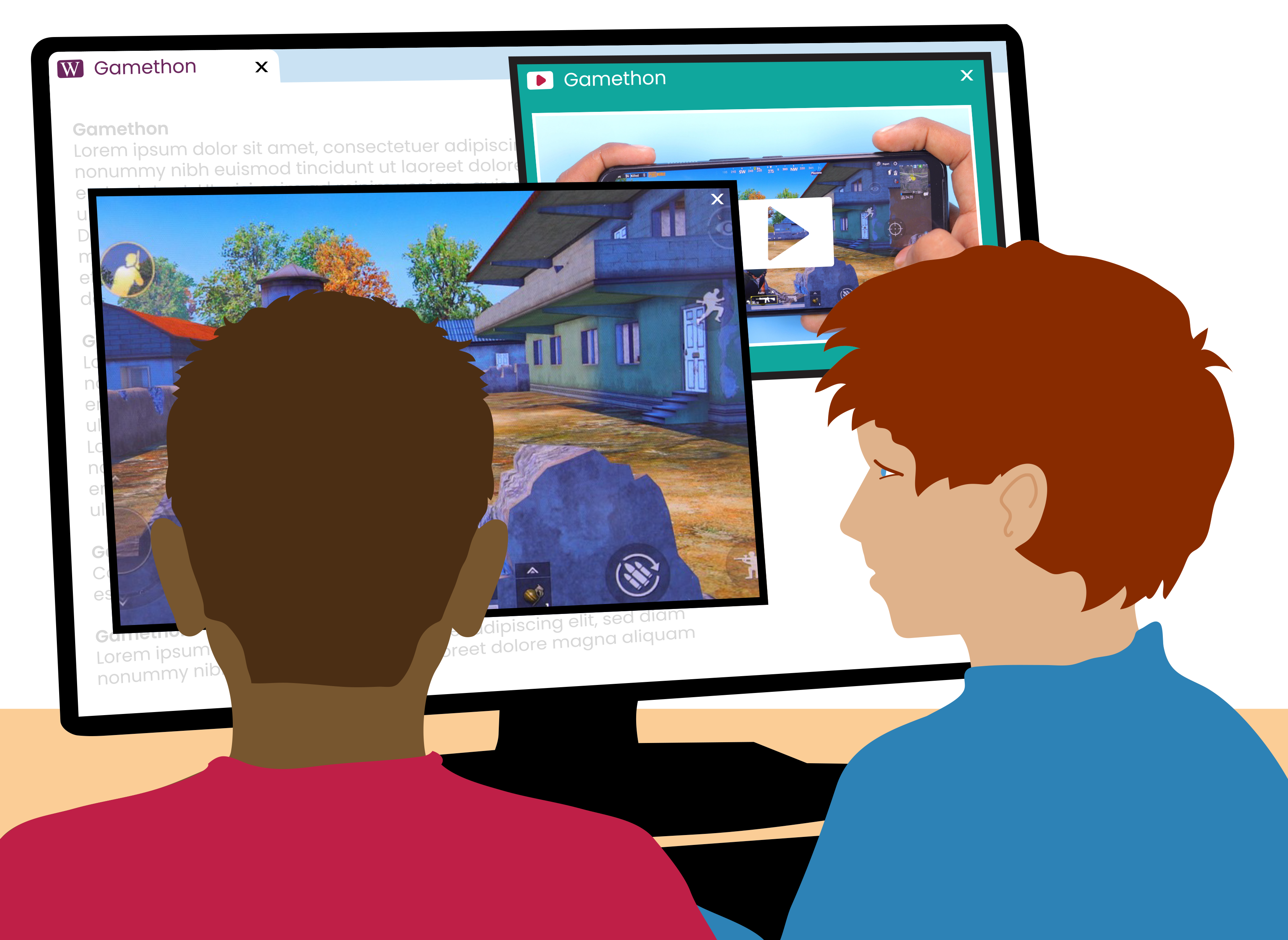
Learning hook: Students explore a scenario involving everyday online use that includes watching videos, using a game, or browsing a website.
Task: Provide a sequence of interactions such as:
- searching for a topic online
- clicking links or videos
- logging into an account
- receiving recommended content
- accepting cookies or permissions.
Students complete a table showing how their online actions create a digital footprint. For each action, they record what data is collected (such as searches, clicks, watch history or logins) and explain how it is used to personalise content and recommendations. They identify where tracking may occur, including cookies, account history and permissions. They then judge whether each action increases or reduces personal data sharing and suggest safer alternatives for managing their digital footprint over time.
Example:
| Online action | What happens when you do this? | How is it used? | Is it safe or risky? | Safe action |
|---|---|---|---|---|
| Logging in | System records username and password when you enter them | To verify identity and give access | Medium risk | Use strong password |
| Watching YouTube videos | Viewing history, search terms, time spent watching, clicks | Recorded through account history and cookies that track what you watch and how long you watch it | Medium risk | Clear history, think before clicking recommended videos |
Prompt: What data are you creating as you move through this activity, how is it tracked, and what could it be used for?
Key idea: Every online action creates data. Digital systems connect this data over time to build profiles and personalise experiences. Users need to understand how their digital footprint is formed and make informed choices to manage it.
Evidence of learning
You might notice that students:
- explain how data is collected through systems (logins, permissions, tracking)
- create and justify strong passwords or passphrases
- identify unnecessary permissions and unsafe behaviours
- describe how digital footprints are formed across multiple systems
- evaluate risks and benefits of sharing personal data
- suggest strategies to manage privacy and security.
Students demonstrate strong understanding when they can explain how data is collected across systems and make informed choices about sharing and security.
Common misconceptions or errors to watch for
- Thinking strong passwords are optional if the app ‘feels safe’
- Not recognising that data is collected through multiple mechanisms (logins, cookies, permissions)
- Believing digital footprints exist only within one app
- Assuming deleting an app removes all stored data everywhere
- Not recognising that data is collected in different ways, such as logging in, website tracking, and allowing apps access to device features like location or camera.
Address through modelling, scenario comparison, and revisiting how data flows across systems.
Poster: Key ideas, practical examples, Australian Curriculum
Download Privacy and security poster (5-6) [PDF] (opens in a new window)
Privacy and Security in Years 7-8
Expectation for this band
Students can:
- explain how multi-factor authentication (MFA) protects accounts even if passwords are compromised
- identify phishing and other cyber security threats and describe how they attempt to gain access to personal data
- investigate digital footprints by evaluating what data is collected and stored, and whether it is essential for the system to function
- analyse how personal data is protected or exposed across digital systems
- apply informed strategies to reduce risk when using online services.
Students move from managing personal data and digital footprints to analysing security risks, evaluating data necessity, and understanding how protection mechanisms safeguard accounts and systems.
Key term in the curriculum
| Cyber security threats | Risks such as phishing, malware, scams or vulnerabilities that can expose data |
|---|---|
| Data minimisation | Collecting only the data needed for a purpose to reduce privacy risks |
What this looks like in practice
| Cyber security threats |
Recognising a suspicious email by checking characteristics and clues in the message, such as unexpected links, unusual sender addresses, spelling errors or requests for personal information |
|---|---|
| Data minimisation | Assigning a participant number and collecting age for a class survey, instead of full names and exact birthdays, so the data is de‑identified and less likely to identify individual students. |
What this looks like in practice
Students:
- explain how MFA works and why it prevents unauthorised access
- analyse examples of phishing messages and identify warning signs
- investigate real or simulated online services and determine what data is essential versus unnecessary
- evaluate how data is stored and protected in different systems such as apps, games, school platforms
- assess the strength of security practices and suggest improvements
- map how digital footprints are formed and where risks may occur across platforms.
By the end of this lesson students will be able to explain how multi-factor authentication (MFA) helps protect online accounts.
Retrieval: A password or passphrase helps protect your online information. What might happen if someone else learns your password
Passwords help protect our online accounts, but they can sometimes be guessed, stolen or reused. Multi-factor authentication (MFA) provides an extra layer of security by requiring more than one way to prove your identity. Today, we will explore how MFA works and why many online services use it to protect accounts.
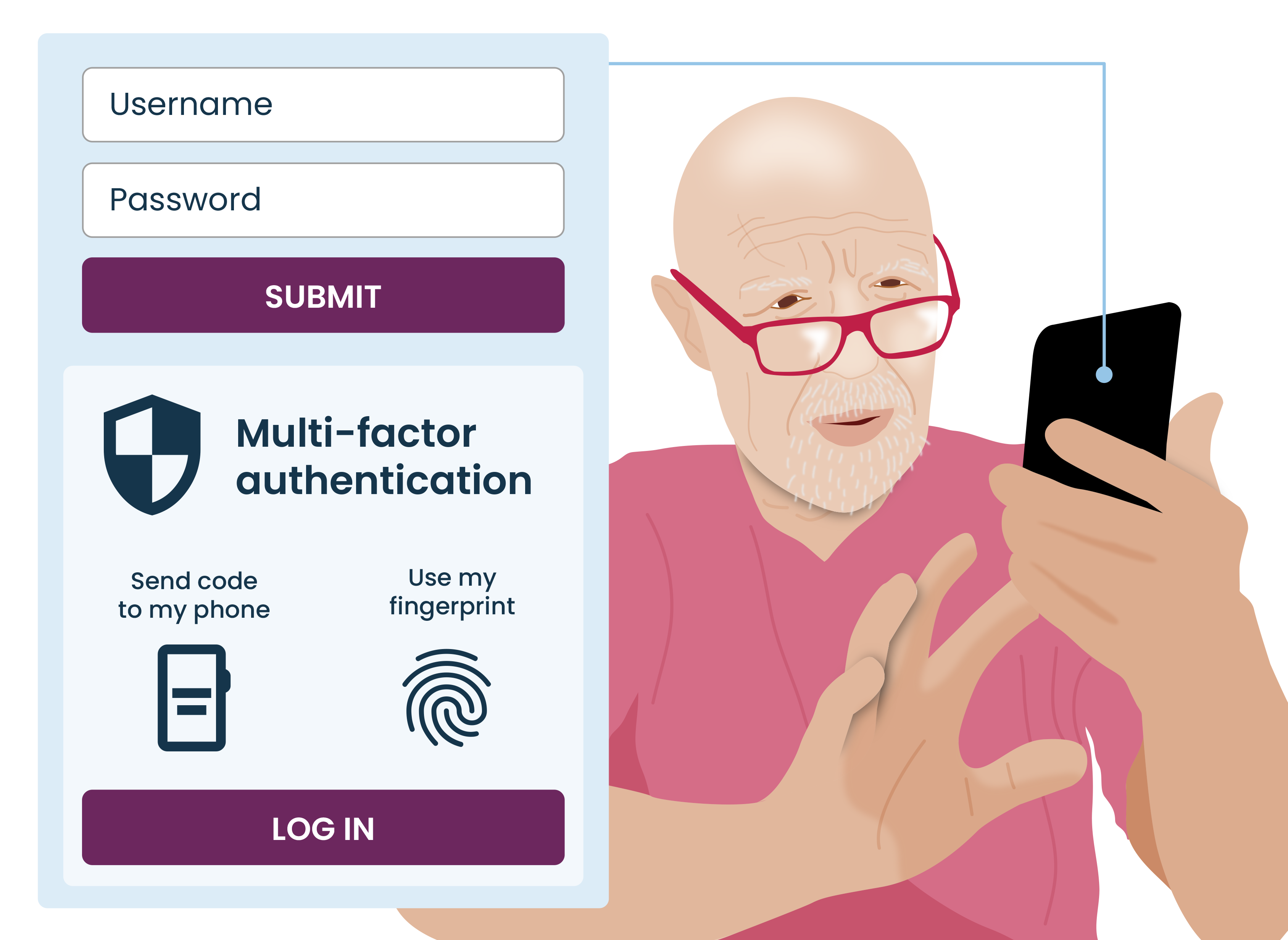
Learning hook: An elderly family member is trying to access their online account but gets stuck at something called multi-factor authentication (MFA). They are confused and not sure why they need it or how it works. What advice would you give them, and why is this step important?
Task: Students explore everyday online situations such as messages with links, logging in using multi-factor authentication (MFA), app permissions, and recommended content or ads.
They identify what data is being collected and why and explain how MFA adds an extra layer of security by verifying identity with a second step.
Students consider risks, such as phishing, unnecessary data collection and excessive app permissions. They decide what data is essential and what is mainly used for tracking or targeting.
Students then create simple advice for a family member, in the form of a flyer, infographic or slide presentation, to explain what MFA is, why it is used, and how it helps protect accounts, even if a password is stolen.
Key idea: Digital systems collect and connect personal data. Multi-factor authentication adds an important layer of protection, but users need to understand how it works and make informed choices to stay safe online.
Evidence of learning
You might notice that students:
- explain how MFA strengthens account security
- identify phishing attempts and justify why they are risky
- evaluate whether data collected by systems is necessary
- analyse how digital footprints create potential security risks
- suggest strategies to improve security and reduce exposure.
Students demonstrate strong understanding when they can analyse security risks in digital systems and justify how data protection strategies reduce those risks.
Common misconceptions or errors to watch for
- Thinking MFA is optional and unnecessary if a password is strong
- Not recognising subtle phishing tactics (for example, realistic-looking messages)
- Assuming all data collected by apps is necessary for functionality
- Believing deleting content removes all traces of a digital footprint
- Underestimating how personal data can be combined across systems
Address through scenario analysis, comparison tasks and explicit modelling of real-world threats.
Poster: Key ideas, practical examples, Australian Curriculum
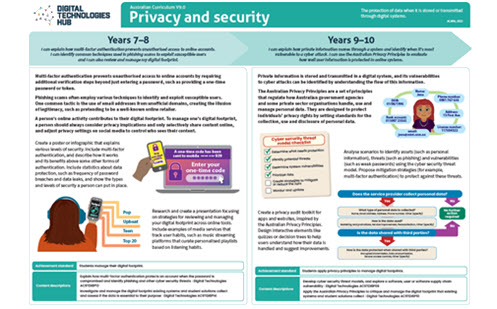
Download Privacy and security poster (7-8) [PDF] (opens in a new window)
Privacy and security in Years 9-10
Expectation for this band
Students can:
- explain how personal information moves through digital systems (from input, to storage, to use across platforms and services)
- identify and analyse cyber security vulnerabilities and how they can be exploited
- apply privacy principles (such as data minimisation and user control) to evaluate how well systems protect user data
- analyse how data is shared, combined or reused across multiple systems to build digital profiles
- evaluate security and privacy practices and propose improvements to reduce risk.
Students move from analysing individual risks and protections to understanding how systems handle, move and expose data across networks, platforms and services.
Key term in the curriculum
| Cyber security threats | Risks such as phishing, malware, scams or system vulnerabilities that can be used to access, damage or steal data |
|---|---|
| Data minimisation | Collecting only the data needed for a specific purpose to reduce privacy and security risks |
| Australian Privacy Principles (APPs) | National guidelines that govern how organisations collect, use, store and share personal information |
| Vulnerabilities | Weaknesses in software, systems or user behaviour that can be exploited by attackers |
What this looks like in practice
| Cyber security threats | Recognising a suspicious email or message by identifying warning signs, such as unexpected links, unknown senders, urgency, spelling errors or requests for personal information |
|---|---|
| Data minimisation | Assigning a participant number and collecting age for a class survey instead of full names and exact birthdays, so the data is de-identified and less likely to identify individual students |
| Australian Privacy Principles (APPs) | Creating a privacy audit toolkit for apps and websites, inspired by the Australian Privacy Principles. Design interactive elements such as quizzes or decision trees to help users understand how their data is handled and suggest improvements |
| Vulnerabilities | Analysing how technical weaknesses such as outdated systems and human behaviours (weak passwords, reuse of credentials) combine to increase system-wide security risk and proposing mitigation strategies |
What this looks like in practice
Students:
- trace how personal information moves through digital systems and how it is stored, shared, and reused
- analyse how data is combined across platforms to build detailed digital profiles
- investigate vulnerabilities in systems, software, and user behaviour and explain how they can be exploited
- evaluate how well different systems apply privacy principles such as data minimisation and transparency
- assess the effectiveness of security measures and identify gaps or weaknesses
- propose improvements to strengthen privacy, reduce data exposure, and mitigate risk.
By the end of this lesson students will understand different types of cyber threats and how individuals and organisations can protect themselves.
Retrieval: What is a common cyber attack that is often delivered through email? How might it trick a user into taking action?
Individuals and organisations face a range of cyber threats that can compromise data, disrupt services and cause financial loss. Understanding how these threats operate helps people make informed decisions about protecting themselves and their information.
In teams, students investigate one type of cyber threat or vulnerability and present their findings to the class.
Suggested topics include:
- phishing
- man-in-the-middle attack
- denial-of-service (dos) attack
- weak passwords
- malware / ransomware
- social engineering.
Students work in teams to research and present on one type of cyber threat or vulnerability.
Each group follows a similar approach to investigate:
- what the threat is (a clear definition in their own words)
- how it works (step-by-step explanation)
- who it affects and why it is dangerous.
Students use a real-world example and briefly explain what happened and the impact. They identify practical ways to prevent or respond to the threat, focusing on clear, actionable advice (for example, using strong passwords or multi-factor authentication).
Teams present their learning in a format such as a short slide deck, poster, or video. As groups present, other students record key points about each threat, including the risk and how to stay safe, building a shared class understanding.
Success is demonstrated when students can clearly explain the threat, provide a real example and describe effective strategies to reduce risk.
Evidence of learning
You might notice that students:
- explain how personal data flows through and between systems
- analyse how digital profiles are created from combined data sources
- identify vulnerabilities and explain how they increase risk
- evaluate systems using privacy principles such as data minimisation
- propose improvements to strengthen security and reduce data exposure.
Students demonstrate strong understanding when they can analyse how systems handle personal data and evaluate the effectiveness of privacy and security protections across interconnected platforms.
Common misconceptions or errors to watch for
- Thinking data stays in one system rather than flowing across platforms and being shared with third-party services (advertisers or analytics companies) that collect and reuse it for tracking and profiling.
- Not recognising how small data points combine to form detailed profiles
- Assuming strong passwords alone prevent all security risks
- Believing deleting data removes it from all systems
- Underestimating how third-party services access or reuse data.
Address these explicitly through modelling, tracing activities, debugging tasks and validation using test cases.
Poster: Key ideas, practical examples, Australian Curriculum
Download Privacy and security poster (9-10) [PDF] (opens in a new window)
Plan your teaching
Explore sample units and lessons.
These sample units show how privacy and security can be taught as a short sequence or extended unit at each year level.
Foundation: Using digital systems safely
Years 1–2: Using digital systems safely
Years 3–4: Digital systems, safety and security
Years 5–6: Digital systems, safety and security
Years 7–8: Hardware, networks and cyber threats
Years 9–10: Cybersecurity
Use this planning template to record relevant information as you view a scope and sequence topic for your year level.
Research-informed teaching
Evidence-based approaches
- Unplugged learning
- Dual coding
- Worked examples and scaffolding
Unplugged learning
Research from CS Unplugged shows that introducing computing concepts without devices helps students focus on core ideas before adding technical complexity.
What this looks like in practice:
- Begin with an activity that does not require a digital device.
- Use familiar materials, movement or role play to model how a system works, for example, instructing a human robot or simulating a multi factor authentication process.
- Focus discussion on the sequence of steps, decision points and rules that control the system.
- Introduce digital tools later, once students understand the underlying process.
Example:
Students role play a secure access system. One student acts as the system, while another acts as the user. Access is granted only after completing a sequence of checks, such as providing a correct password and a second verification step. Students identify where decisions are made, what happens when a check fails and when the process repeats, before later exploring how similar systems are implemented digitally.
Dual coding
Research synthesised by Richard E. Mayer shows that students learn new concepts more effectively when information is presented using both words and visuals, reducing cognitive load and supporting deeper understanding.
What this looks like in practice:
- Present new concepts using both spoken or written explanations and visual representations.
- Use diagrams, images, symbols or simple models alongside verbal descriptions.
- Explicitly link the visual elements to the language being used.
- Revisit the concept using both modes together to reinforce understanding.
Example:
When introducing multi-factor authentication (MFA), the teacher begins by drawing a simple login screen with username and password fields, modelling the process of signing in. They discuss the use of passwords and passphrases, highlighting the differences between them with examples and inviting student input to build understanding. After demonstrating entry of a correct username and password, the teacher introduces MFA as an additional step, explaining how it requires a second form of verification. Students are then prompted to think more deeply by responding to questions about what this extra layer of security provides. Each representation is accompanied by an explanation.
Worked examples and scaffolding
Research synthesised by the Australian Education Research Organisation shows that modelling worked examples and gradually reducing support improves learning of complex procedures.
What this looks like in practice:
- Model a complete example before asking students to work independently.
- Make the thinking process explicit by explaining decisions and steps as they occur.
- Provide structured support (such as prompts, templates, or partially completed examples).
- Gradually remove scaffolds as students gain confidence and competence.
Example:
In this example, use gradual release (scaffold removal) in a discussion about typical online activities and potential risks, and what actions make that online action safer.
Start with a fully worked example:
| Online action | What happens when you do this? | How is it used? | Is it safe or risky? | Safe action |
|---|---|---|---|---|
| Logging in | System records username and password when you enter them | To verify identity and give access | Medium risk | Use strong password |
Teacher explicitly explains each column and thinking.
Students complete a partially filled table with prompts:
| Online action | What happens when you do this? | How is it used? | Is it safe or risky? | Safe action |
|---|---|---|---|---|
| Searching on Google | Data about your search is recorded | Used to personalise results and ads | ______ | ______ |
Use supports such as:
- sentence starters (for example, ‘This is risky because …’)
- word bank (cookies, tracking, personalisation).
Students work in pairs to complete a less structured table:
| Online action | What happens when you do this? | How is it used? | Is it safe or risky? | Safe action |
|---|---|---|---|---|
| Watching YouTube videos | System records viewing history, search terms, time spent watching, clicks | ______ | ______ | ______ |
Supports are light with only column headings and the starting column completed.
Here is guidance for remaining columns to guide discussion:
| What happens when you do this? | How is it used? | Is it safe or risky? | Safe action |
|---|---|---|---|
| System records viewing history, search terms, time spent watching, clicks | Used to personalise results and ads | Medium risk | Clear history, think before clicking recommended videos |
Students complete the task independently with minimal guidance.
For each online action, explain what data is collected, how it is used, whether it increases or reduces personal data sharing and suggest safer alternatives.
| Online action | What happens when you do this? | How is it used? | Is it safe or risky? | Safe action |
|---|---|---|---|---|
| ______ | ______ | ______ | ______ | ______ |
Check understanding
- 1–2: Checklist
- 3-4: Assessment advice
- 5-6: Work sample
- 7-8: Rubric
- 9-10: Work sample
Teachers can assess student learning (for example, checklists, observations, rubrics, student work samples.
- Foundation: Using digital systems safely. The assessment section of this topic provides advice on assessing students’ knowledge of personal information and includes a rubric.
- Years 1-2: Using digital systems safely The assessment section of this topic provides advice on assessing students’ knowledge of personal information and includes a rubric. Use the work sample Organising ideas: My school (opens external website in a new window) to assess students use of digital systems for a purpose, as they use the basic features of common digital tools to create, locate and share content.
- Years 3-4: Digital systems, safety and security.The assessment section provides advice on assessing students’ knowledge of algorithms. Use this sample assessment task, Safety first when online (opens external website in a new window) to assess students’ knowledge, skills and processes related to online safety, privacy and security.
- Years 5-6: Digital systems: School network Students create a concept map or mind map that demonstrates what they know about digital systems, how different components are connected and the role they play, using the school network as an example. Use this annotated work sample, Explanation: School networks, (opens external website in a new window)which demonstrates a satisfactory response to explaining how a school network operates.
- Years 7-8: Hardware, networks and cyber threats. The assessment section of this topic provides advice on assessing students’ knowledge of privacy and security and includes a rubric.
- Years 9-10: Cybersecurity.
The assessment section of this topic provides advice on assessing students’ knowledge of privacy and security and includes a rubric.
Deepen your understanding
Explore these resources to provide further background about digital citizenship
- Digital systems cards - downloadable cards with explanation of use (primary)
- Lesson plan: Network security (opens external website in a new window) - detailed teacher instructions included